Text to Video Generator: Turn Your Prompt into Video
Write what you want to see, choose a model, and generate. That is the whole workflow. Gazouya is a text to video generator that reads natural prompts, adds auto-generated audio when you switch it on, and hands back an MP4 with no watermark. Free credits are granted daily, so all you have to do is log in.
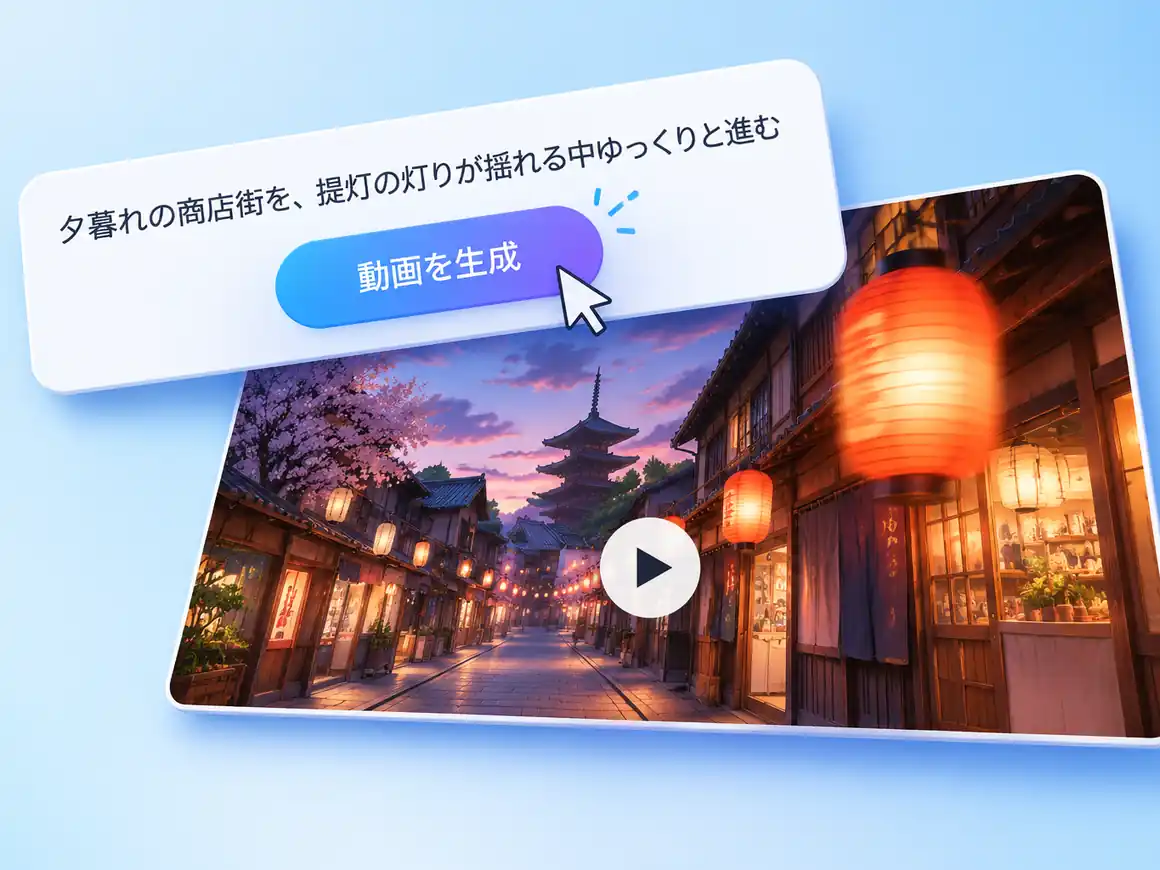
What This AI Text to Video Generator Does
You do not need a long brief. Describe the clip you want in a sentence and the text to video generator builds it. Longer prompts are there for when you want finer control.
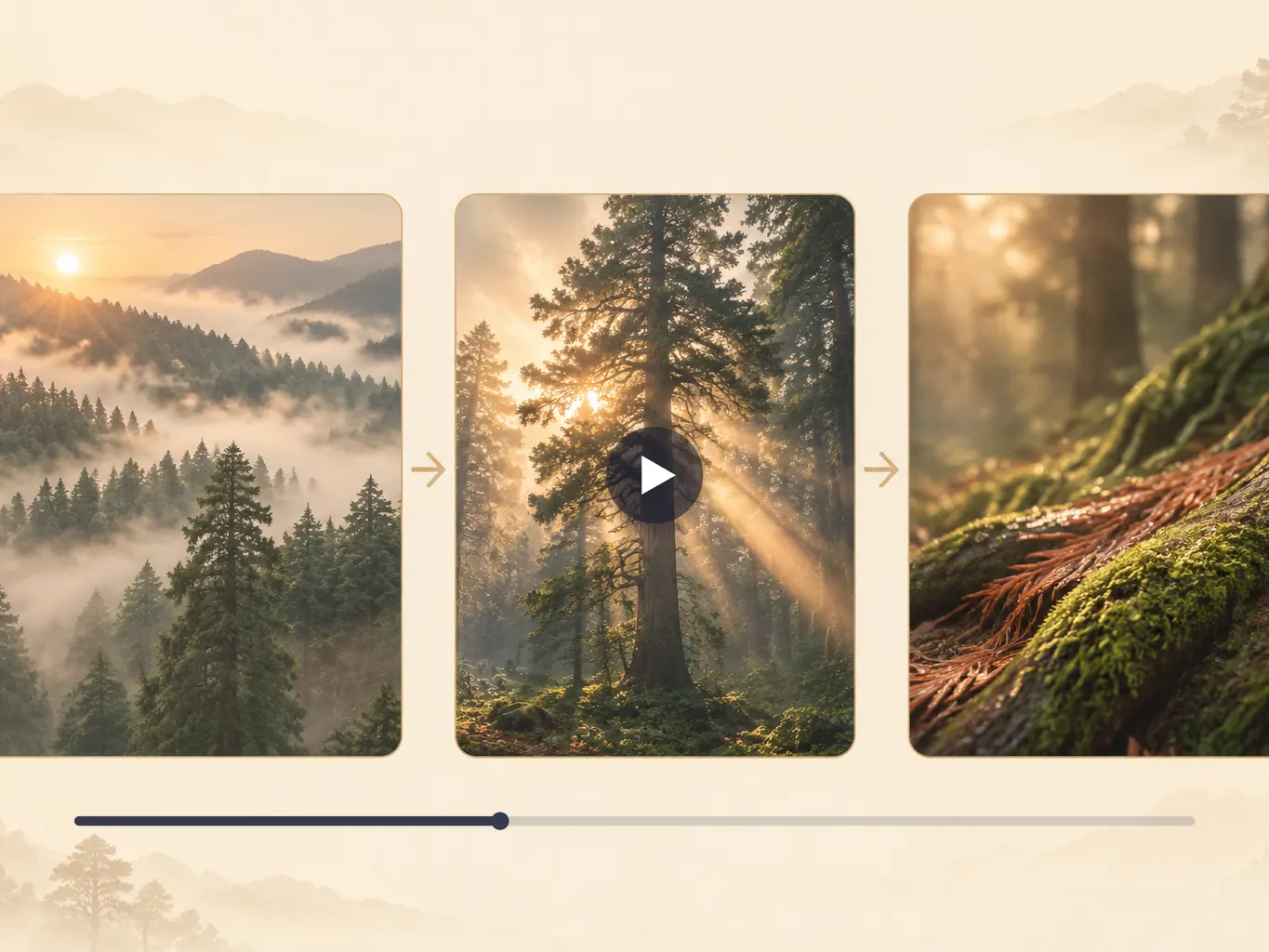
Long Prompts, Up to 30,000 Characters
A single prompt can hold up to 30,000 characters. Describe the subject, the camera movement, and how one scene cuts to the next, and the result is easier to steer than a pile of keywords. If you already have a still image you want to move, AI Image to Video can use that image as the starting point instead.
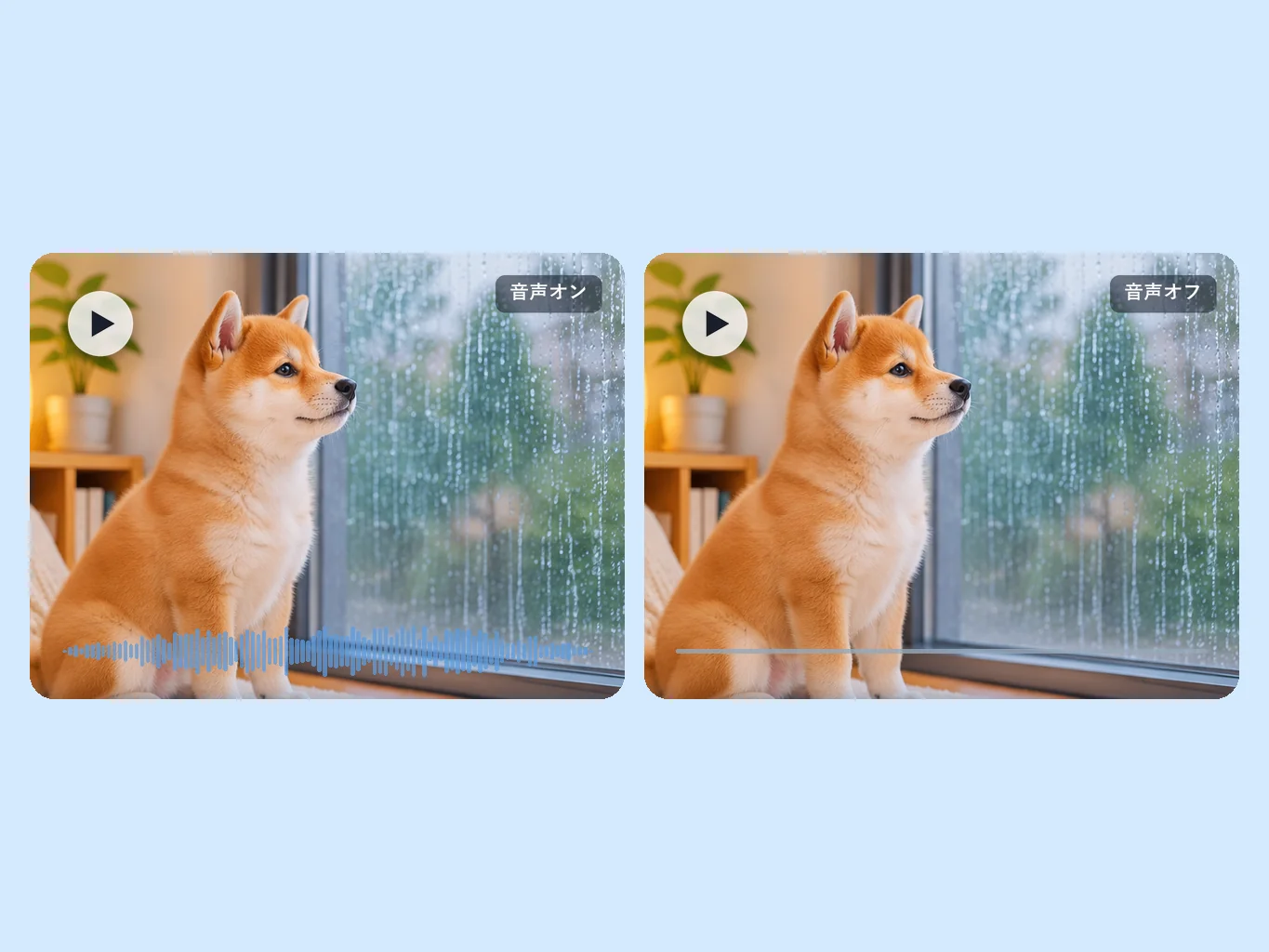
Text to Video with Audio, On or Off
Audio is generated alongside the picture, so the clip comes out with sound already in it. Switch it off when you would rather lay your own music or voiceover on top afterwards.
Pick a Model First, Then the Settings
Gazouya offers several models. Clip length, aspect ratio, and resolution all depend on which model you choose, so pick the model that fits your use case before touching anything else.
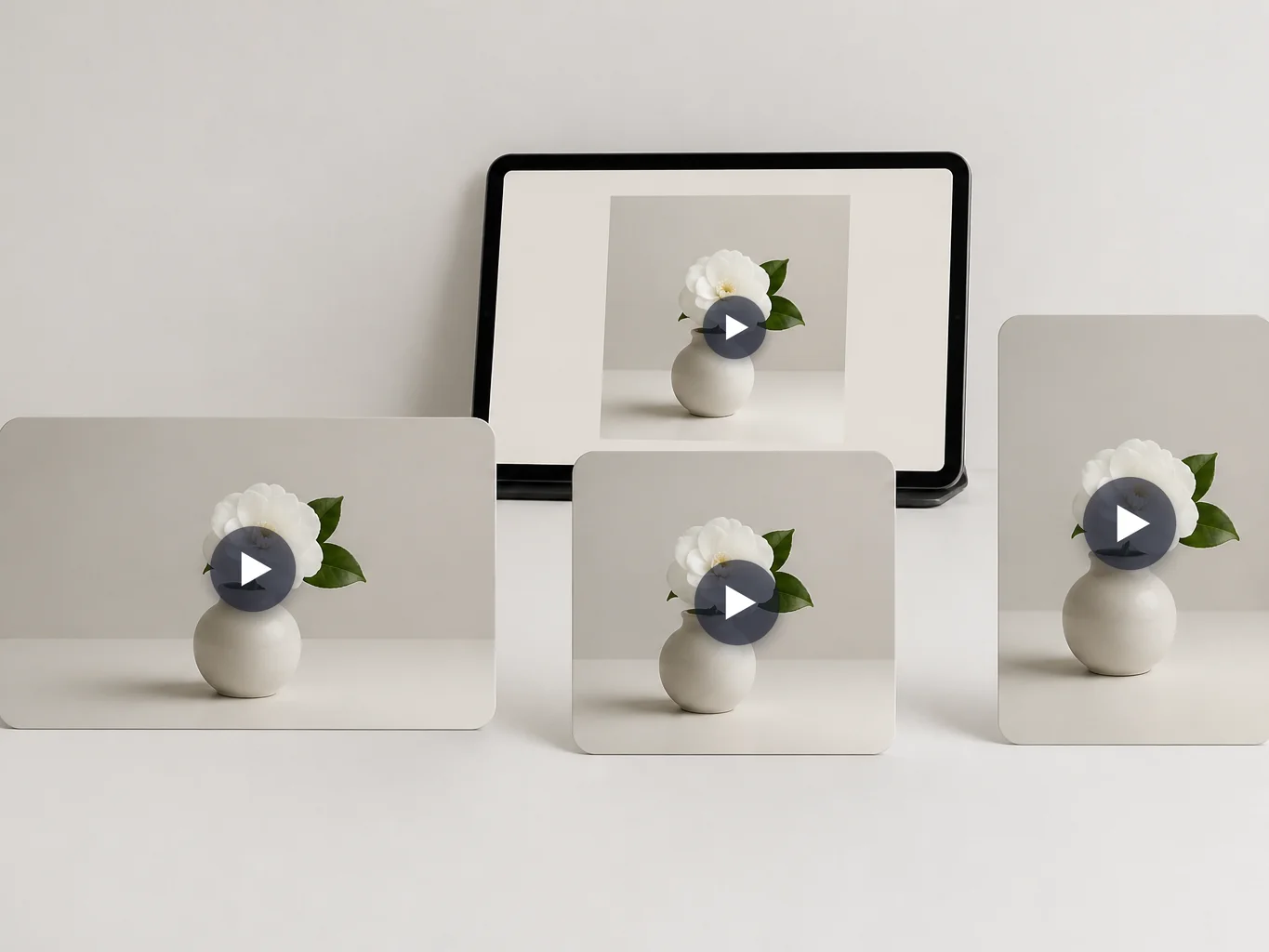
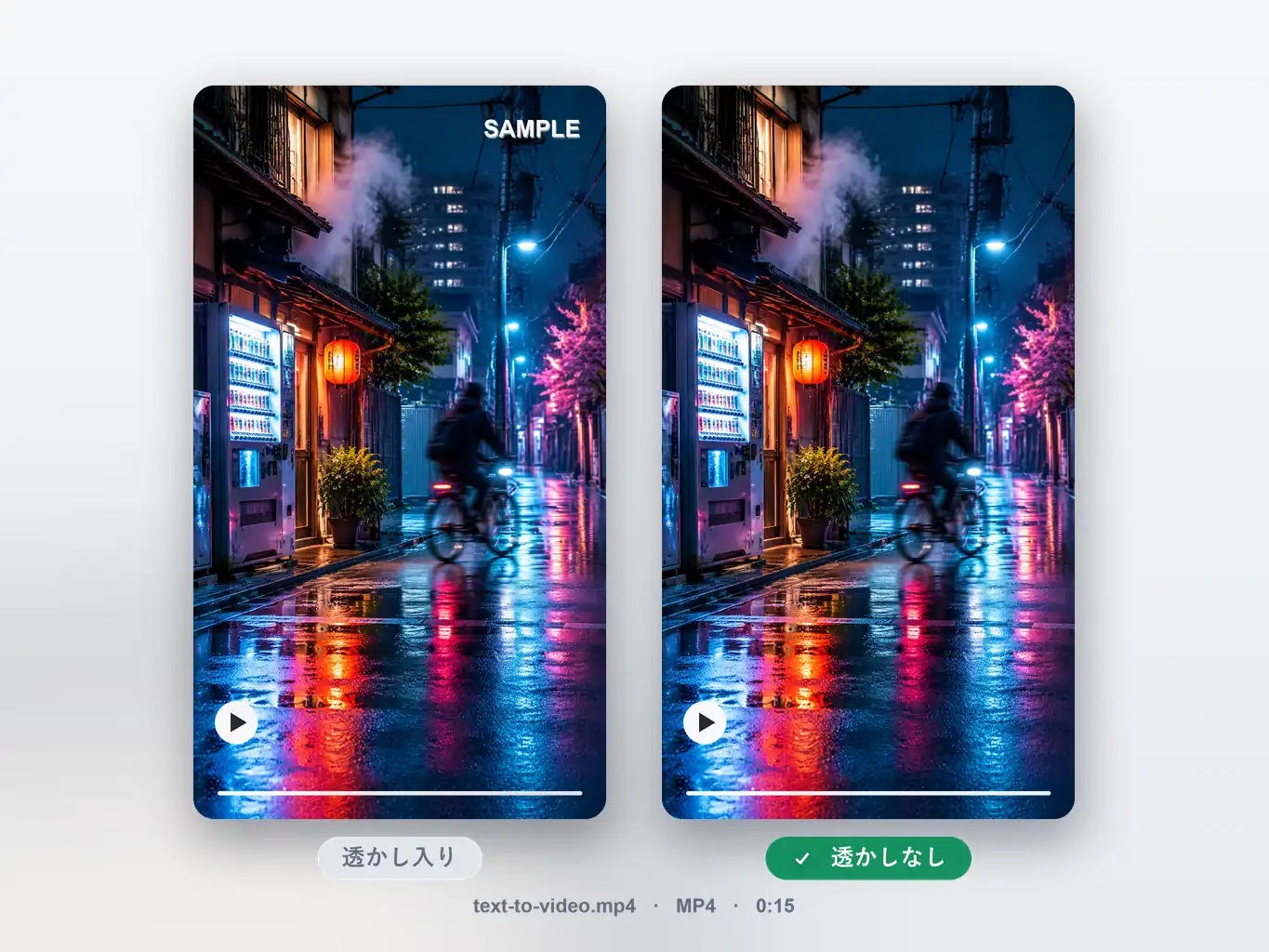
MP4 Export, No Watermark
Finished clips download as MP4. Nothing is stamped over the frame, so the file is ready to post or drop into a deck as it is.
Reads Japanese Prompts as Written
Prompts written in Japanese are interpreted directly, so a description of the mood or the light does not have to be rewritten in English first.
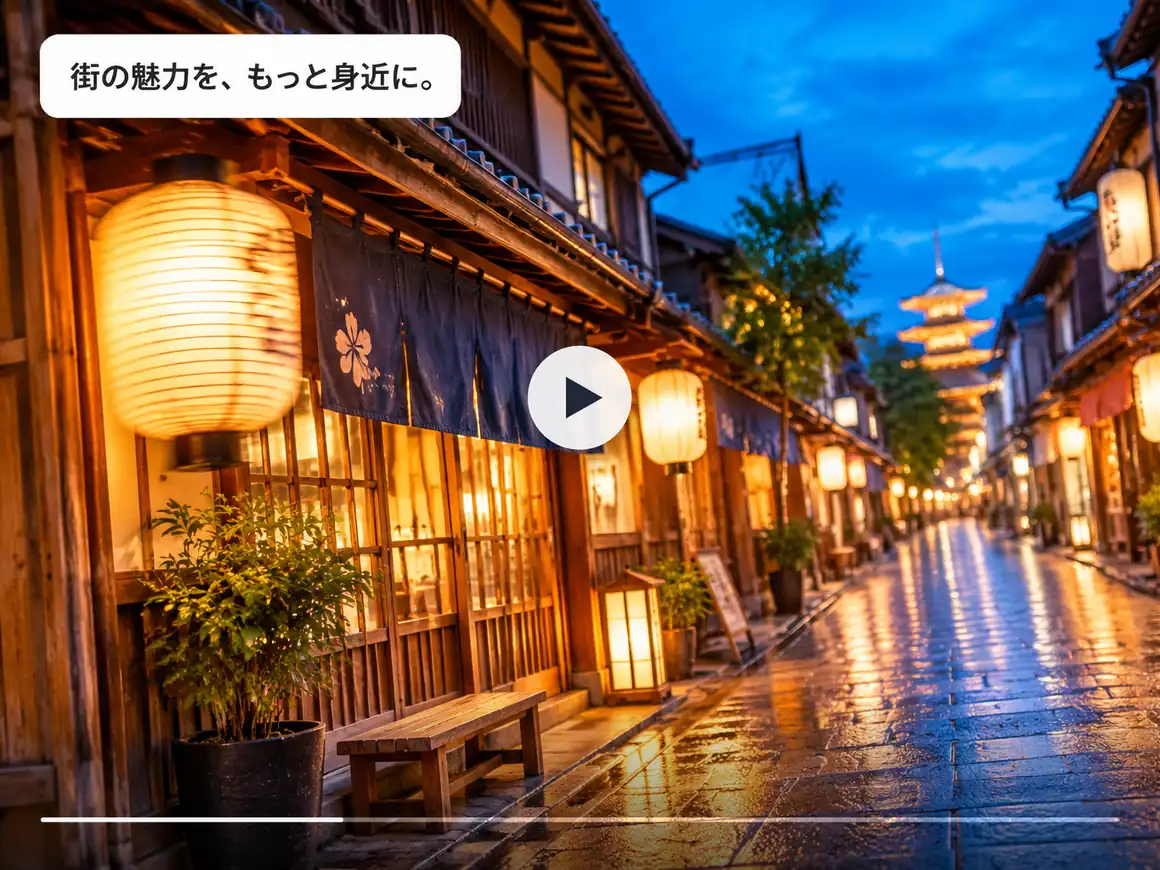
How to Turn Text into Video in 3 Steps
The only thing you need to prepare is a description of the video you want. This text to video maker runs entirely in a browser tab, so there is no text to video software to install and no converter to set up on your machine.
Write the prompt
Describe the video you want. One line is enough, and so is a shot-by-shot script.
Pick a model and settings
After you pick a model, choose the parameters for the video you want: length, aspect ratio, resolution, and audio.
Generate and download
Generation takes a while, and the conversion runs while the tab stays open. Review the motion and the audio in the preview, then download the MP4. There is no watermark.
Script to Video, Article to Video, and YouTube Clips
The same tool produces very different results depending on what you feed it. Three common starting points are below.
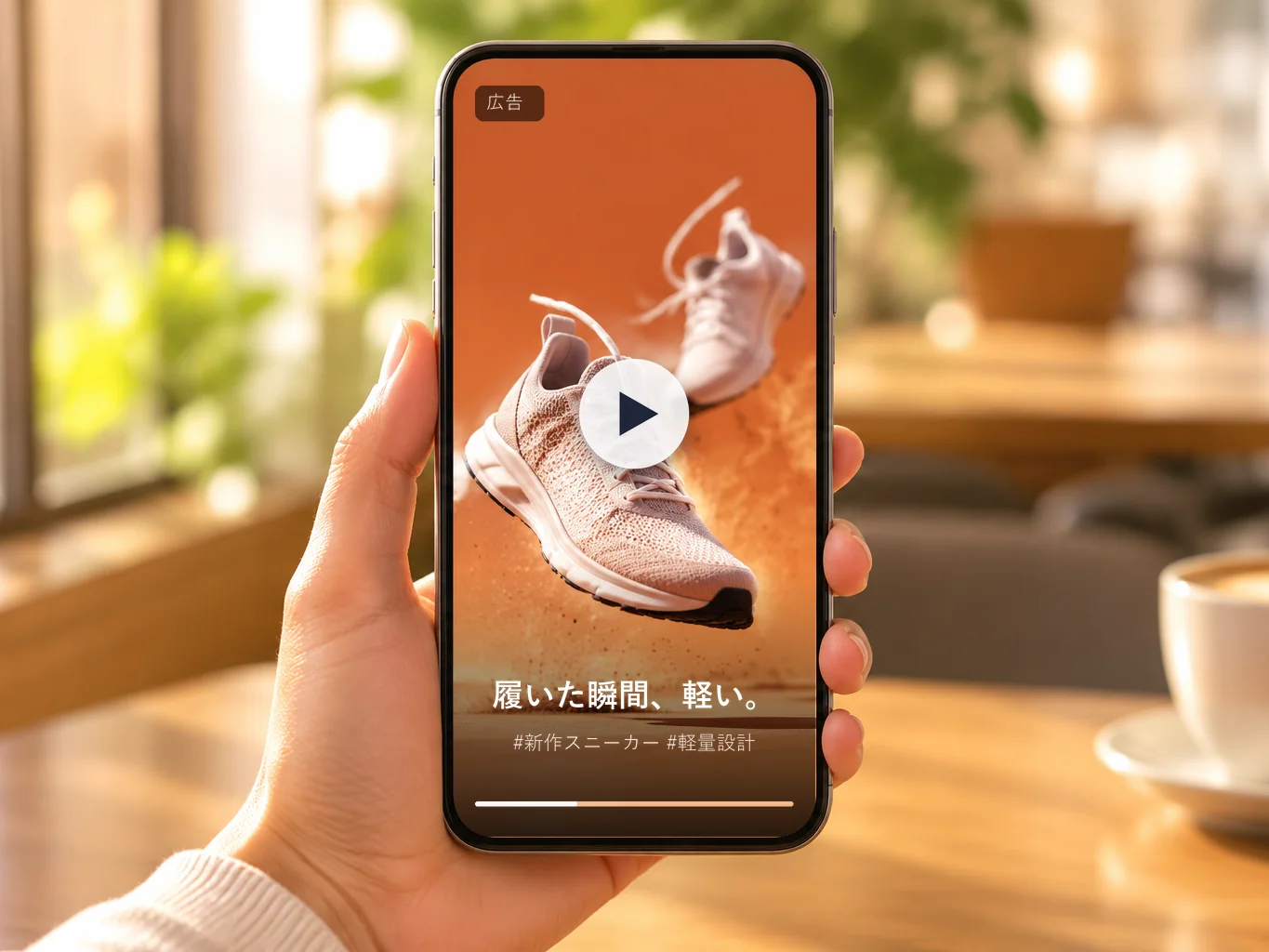
Script to video for short ads
Paste a product description straight into the prompt field and get a short clip out. Because it runs in the browser, you can rough out a draft on a phone and finish it on a laptop. When there is a clip whose structure you want to match, AI Reference to Video builds a video along the same lines.
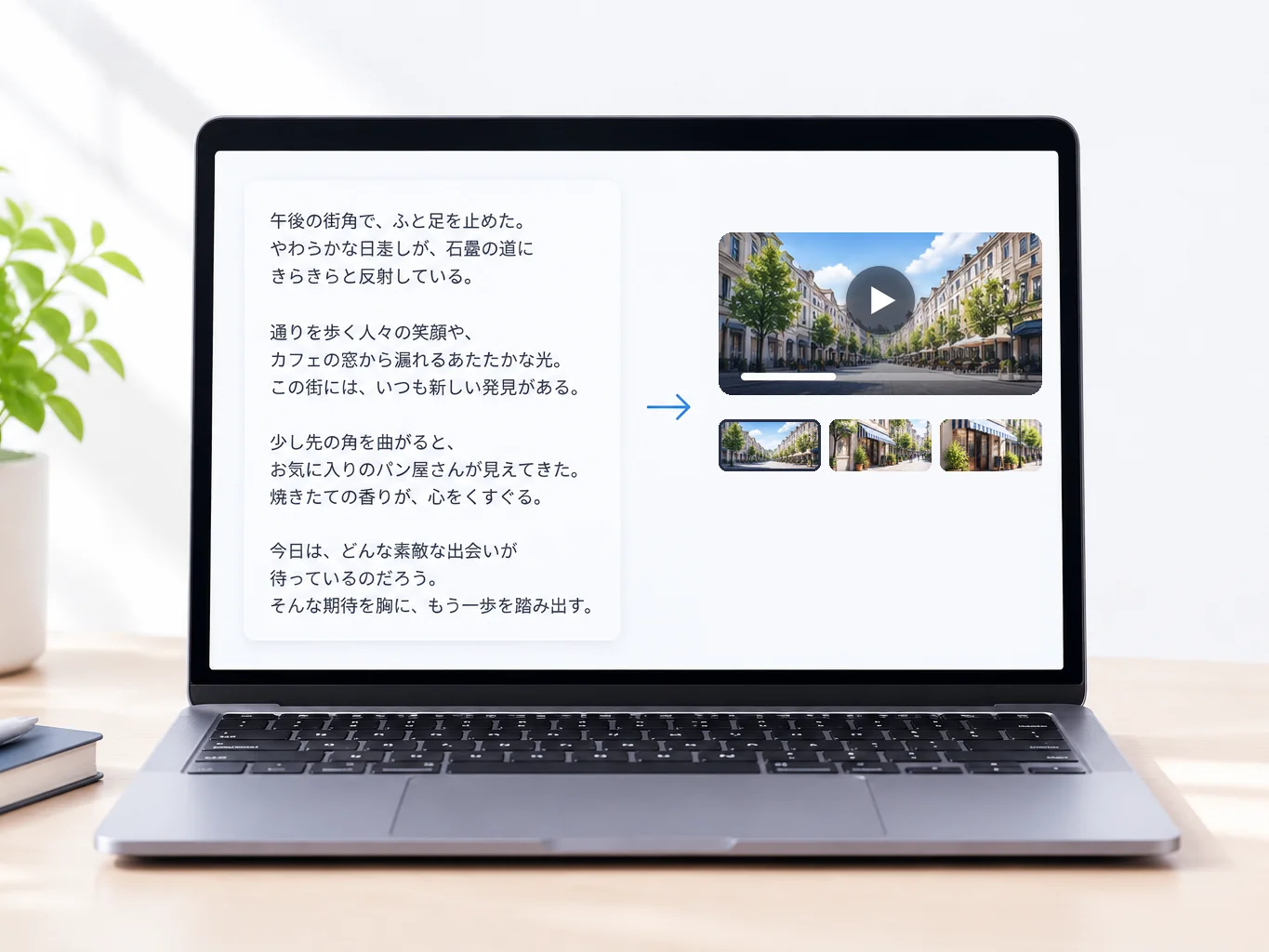
Article to video and blog to video
An article you already wrote can become a first cut without being restructured. There is no footage to shoot first; the written article is enough to reach a draft cut.
Text to video for YouTube intros
A few seconds of opening footage sets the tone for the rest of the video. Make it in the tool, keep the MP4, and cut it into your edit.
Why This Free AI Text to Video Generator Is Worth Trying
Free daily credits
Credits are granted every day. Start with one short clip and judge the output before you plan anything longer.
No watermark on the MP4
Nothing is burned into the frame. The file you download is the file you can publish, with no extra pass through an editor.
Several models, one workspace
Clip length, aspect ratio, and resolution are set per model. A short piece for a feed and a longer piece for an explainer can both be made on the same text to video platform, each with the model that suits it.
Room for long prompts
With 30,000 characters available, the tool rewards people who would rather write a shot list than a sentence.
Japanese prompts, no translation step
Most text to video tools assume an English prompt. Gazouya reads Japanese as written, which removes a rewrite step for teams working in Japanese.
Nothing to install
It runs in the browser, so there is nothing to install. Log in, write a prompt, and work through five settings: model, length, aspect ratio, resolution, and audio.
What People Made with This Text to Video Tool
We moved a product announcement from a static banner to a short video. Pasting the description in and getting something that actually says what we mean is the part that saves time. No watermark meant we could run it in the ad slot as it was.

Weekly social clips used to eat a whole afternoon. Now I paste a section of an article in, generate a draft, and fix only the parts that are off. Being able to switch audio off fits how we add music later.

I make short clips for internal reviews. Generation is not instant, so I start one and get on with something else while it runs. The wait is the trade-off for getting the framing close to what I described.

Opening footage for course modules used to mean stock footage that never quite matched. Writing the lesson flow out as a long prompt and generating from it keeps the order I actually teach in.

I try ideas here before pitching them. Switching models changes what lengths and resolutions I can pick, so I match the model to the format the client asked for. The daily credits cover most of that experimenting.

Client decks used to be text only. Now each concept gets a short clip attached. Writing the brief in Japanese and letting the tool read it directly saves a translation pass I never had time for.

Text to Video: Frequently Asked Questions (FAQ)
Start with Text to Video, Free
Write a prompt, choose a model, generate, and download. Your first text to video clip can be made with the free daily credits.