Image to Video AI That Makes One Photo Move
You probably have a photo on your phone that deserves more than a scroll-by. With Gazouya, you upload the image, type the motion you want in plain words, and the tool returns a short clip. Resolution, aspect ratio, length and audio are all chosen before the render starts, so the first export already fits a vertical feed or a product page instead of needing a second pass. No shoot, no studio, and no editing software to install.
What You Can Do with Image to Video AI
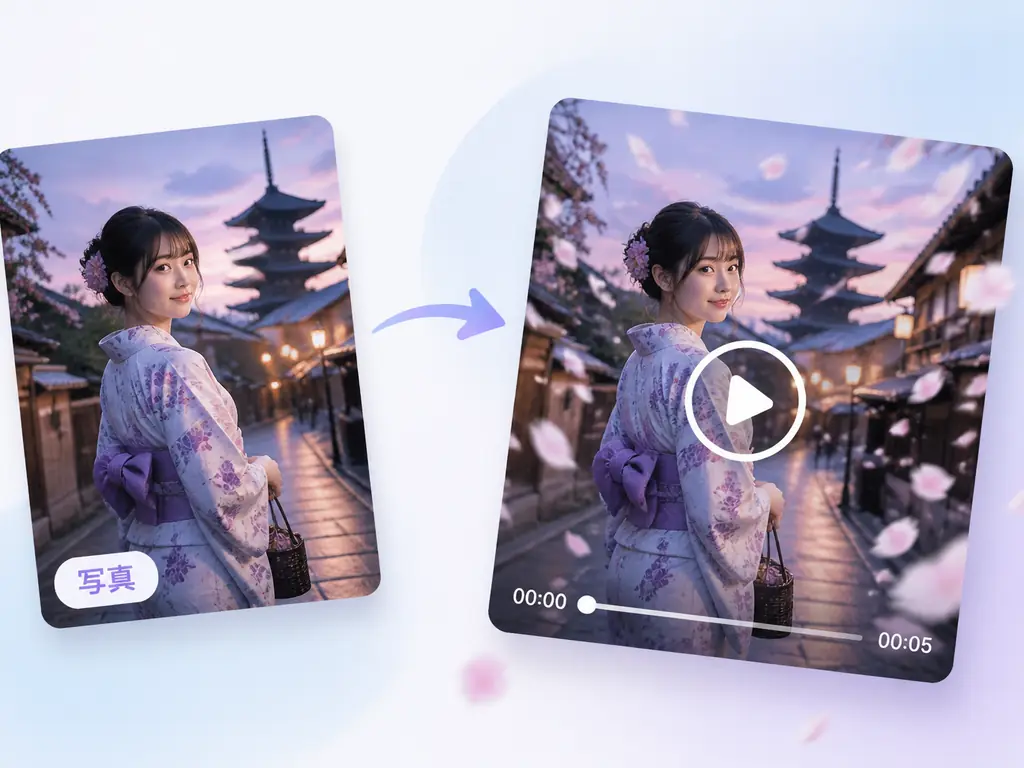
Start with one photo
A phone snapshot, an AI-drawn illustration, a half-finished sketch. Whatever image you already have can be uploaded as is, and that is the whole setup. If you would rather make the material first, AI illustration generation can produce one frame and you animate it afterwards. Either order works.
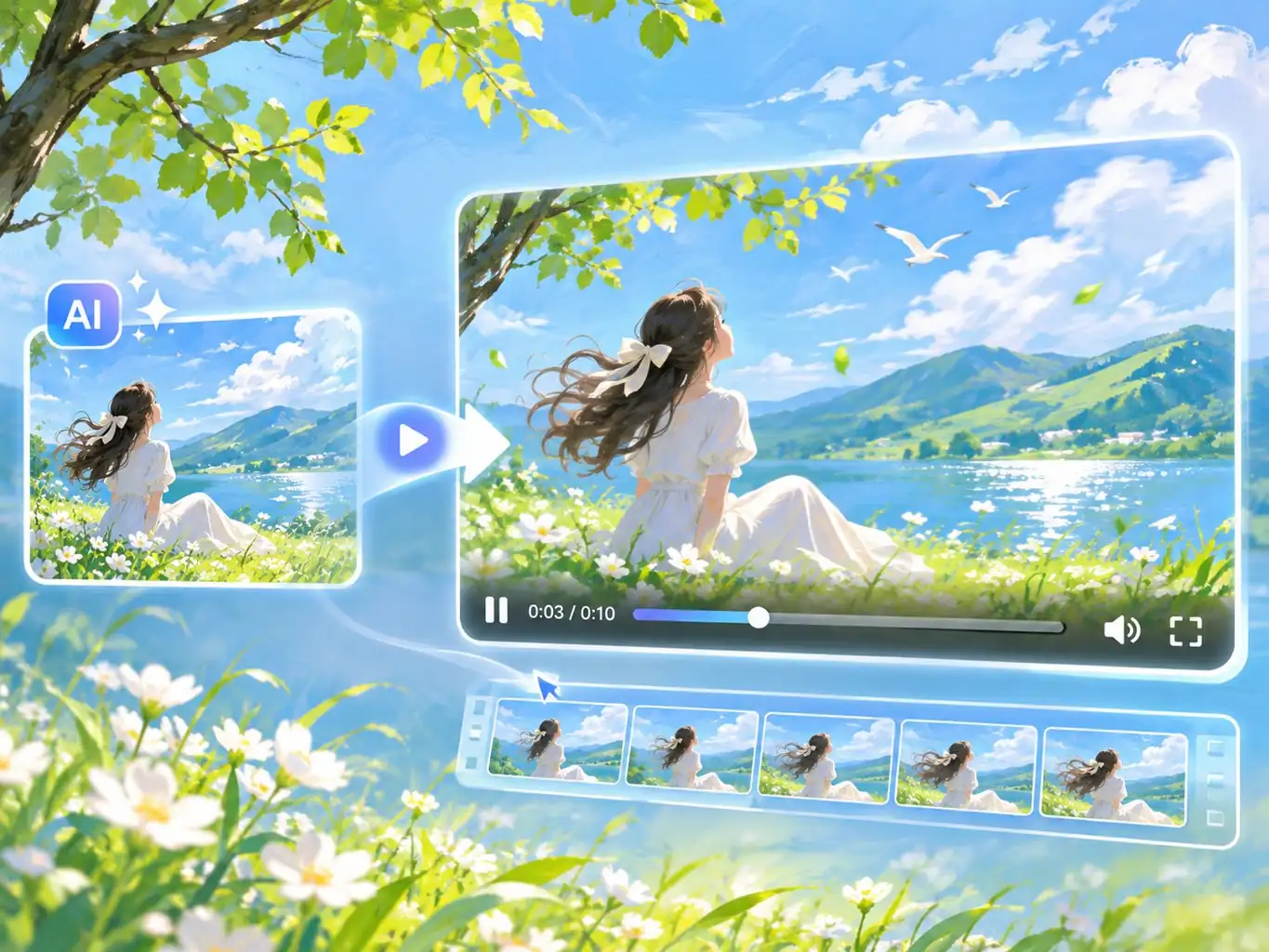
Describe the motion in words
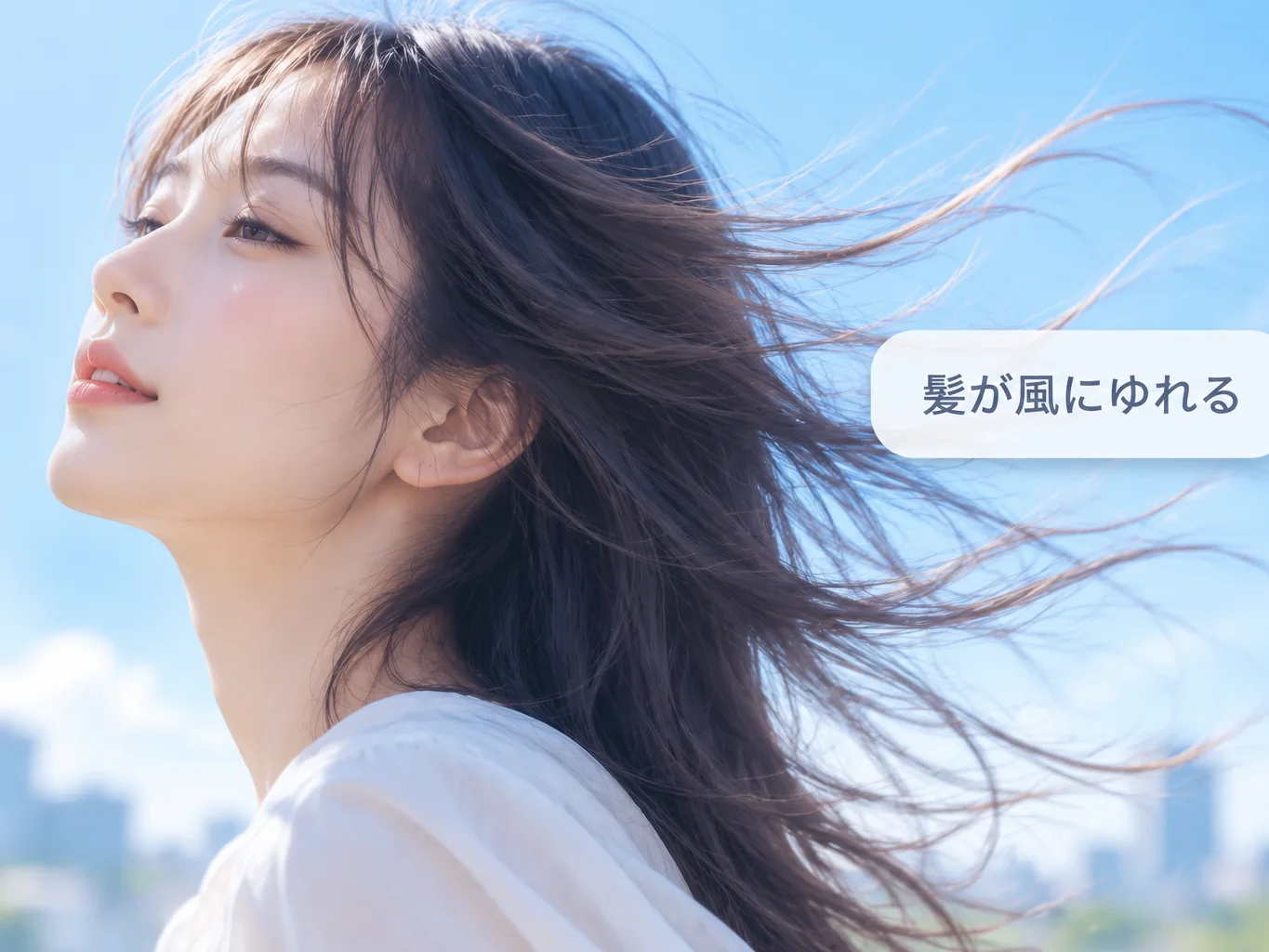
Hair lifting in the wind. A slow push toward the subject. Light glinting across water. Write the movement you have in mind and the AI image to video generator builds it into the footage. No technical vocabulary required, ordinary wording carries the instruction.
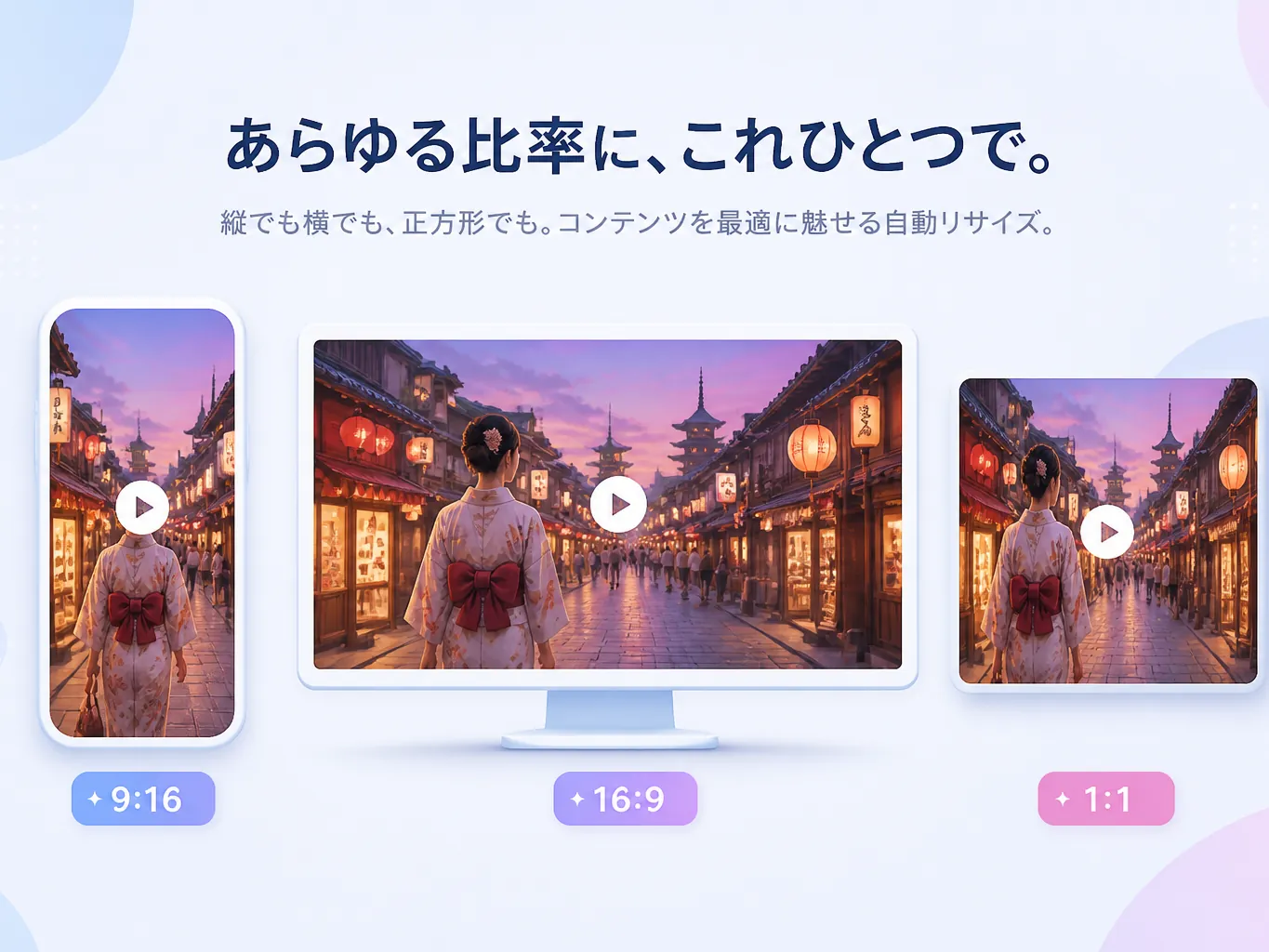
Export settings for each use
Vertical 9:16 for short-form feeds, horizontal 16:9 for websites and video platforms, square for product grids. Locking the aspect ratio before generating means nothing gets cropped away later. Resolution and length are picked on the same screen, before the render starts.
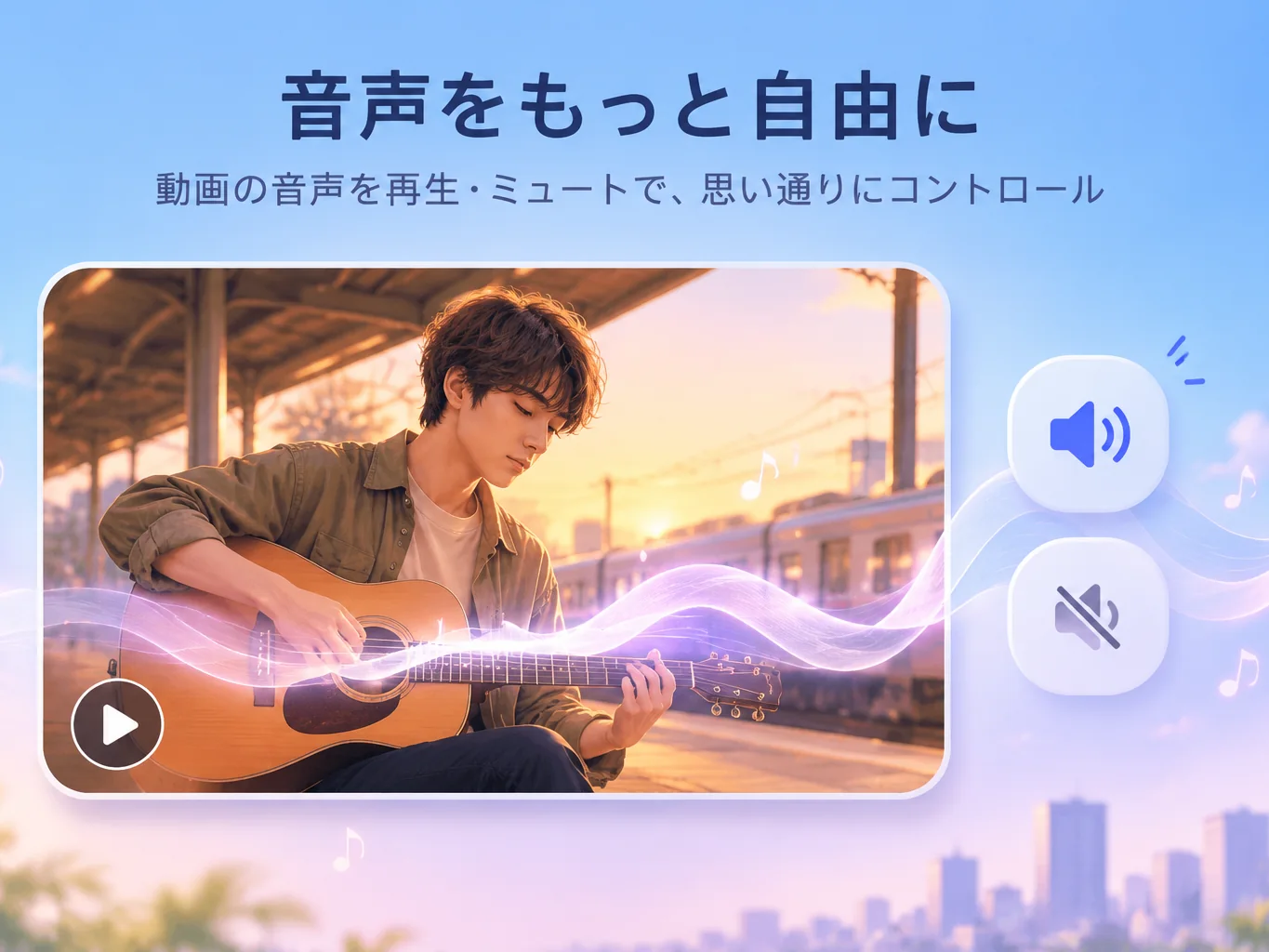
Audio on or off
Turn audio on when you want a finished clip with sound. Turn it off to export a silent asset for your own music or voiceover. The clearer your end use, the more this switch saves you.
How Image to Video AI Works in 3 Steps
Upload the image
Pick the photo or illustration you want to move and upload it.
Write the motion and set the options
Describe the movement in plain words, then choose resolution, aspect ratio, length and audio.
Generate and save
Press generate and the clip is rendered. Check the preview, and download once the motion looks right. If you need to trim the length or reorder clips afterwards, hand the file straight to AI video editing.
Where Image to Video AI Earns Its Place
Social ads and short videos
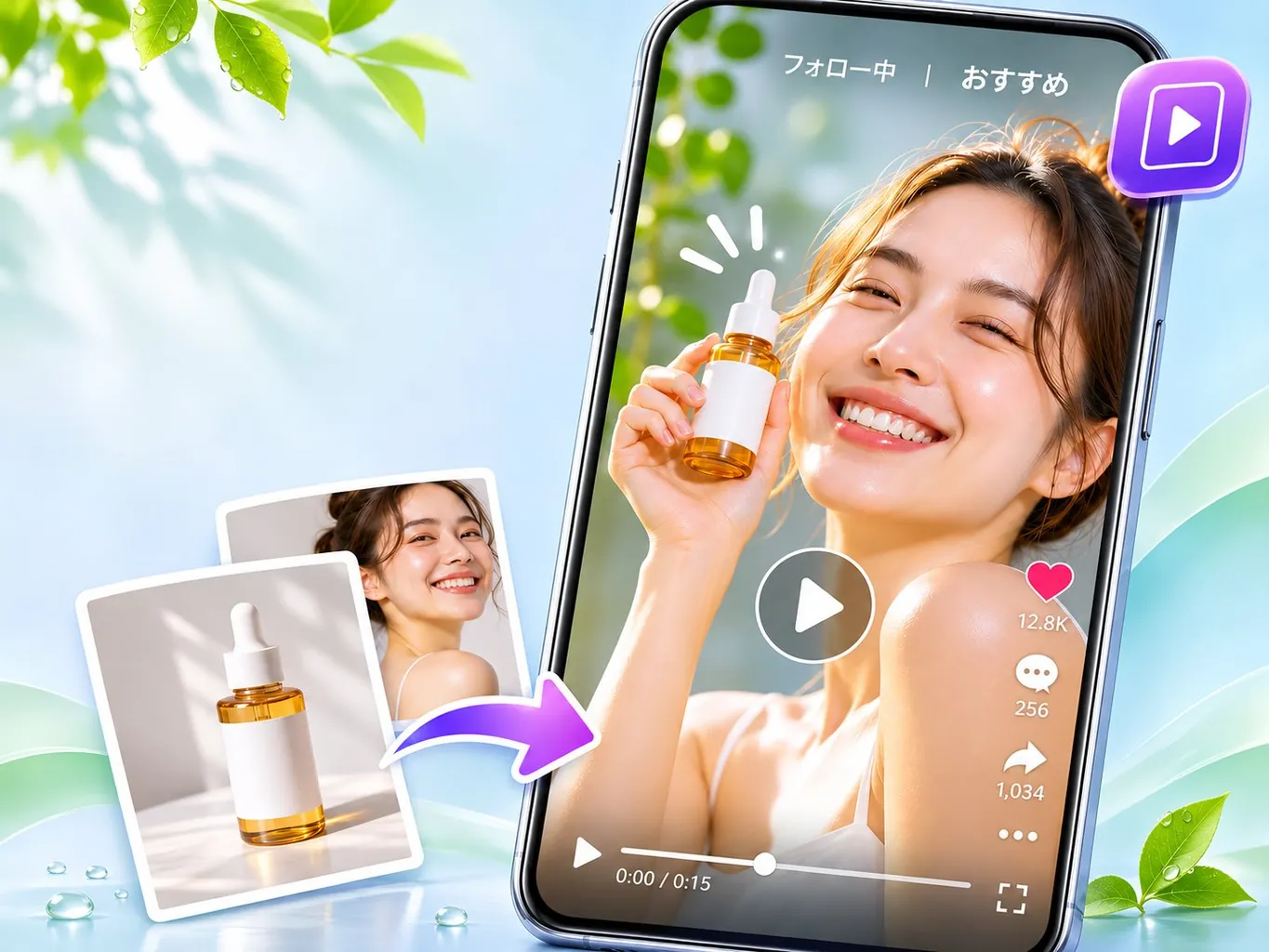
Render at 9:16 and the clip drops into a short-form feed without reformatting. One product shot or one portrait becomes a moving cut, so posting more often does not mean booking another shoot day. If you are still weighing photo to video AI options, one test clip is enough to judge the output. When there is no photo to start from, text to video can build the whole thing from a written description.
E-commerce product pages
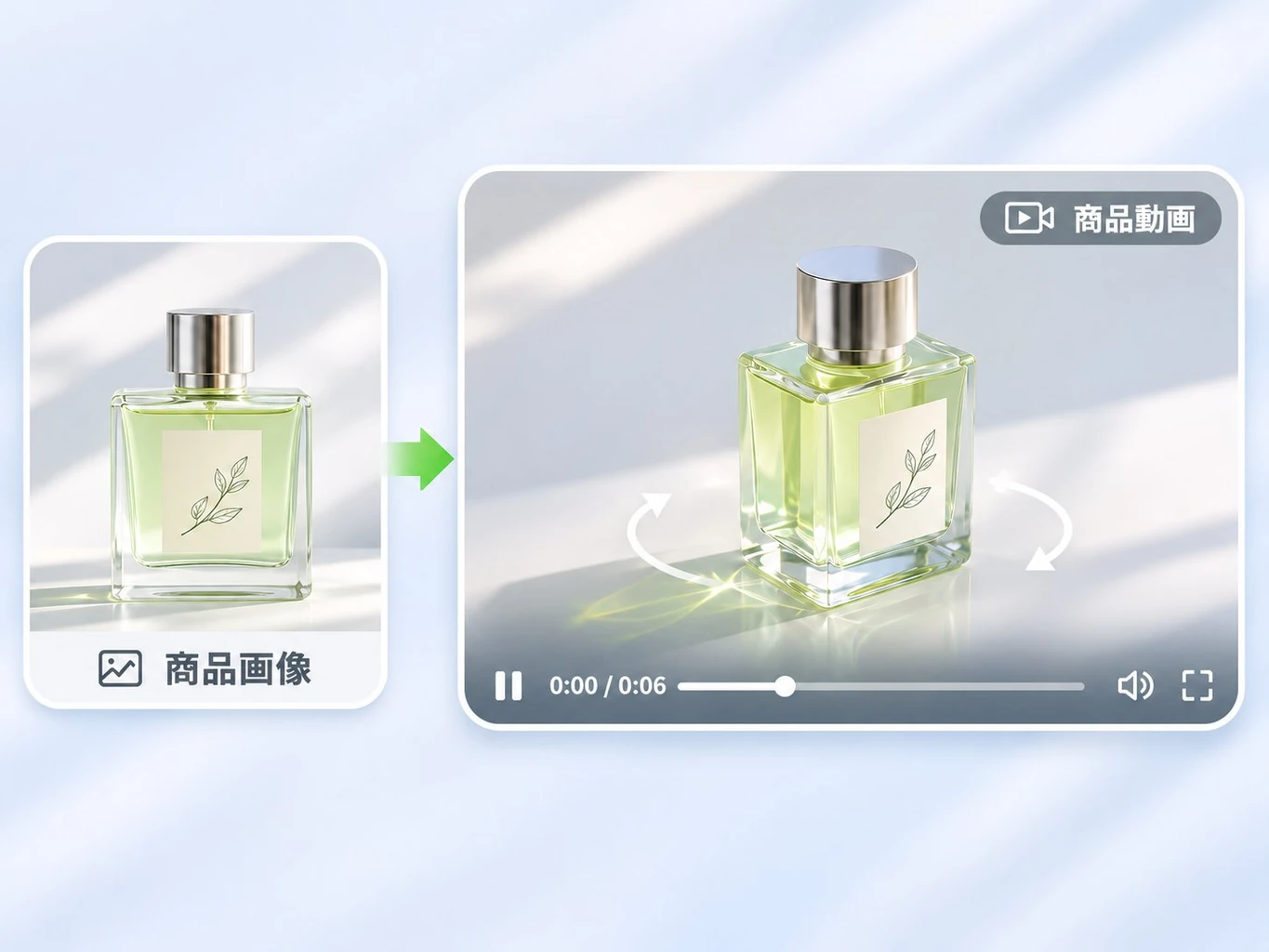
Texture and gloss are hard to convey in a still image. A short movement does it: keep the product itself still and instruct only the light or the background to move, and the shot draws the eye without altering how the item reads. To settle the look before rendering, image to image generation shifts the mood while holding the composition.
Family photos and single illustrations
A family picture, one frame from a trip, an illustration you spent weeks on. Convert image to video AI style and any of them becomes something you can watch rather than scroll past. Used as a photo to video AI for older pictures, a single album page comes back with the air of that day attached. If you want the drawn look first, a photo to anime step fits well with the motion. For illustrators, moving a finished piece adds one more place to show it.
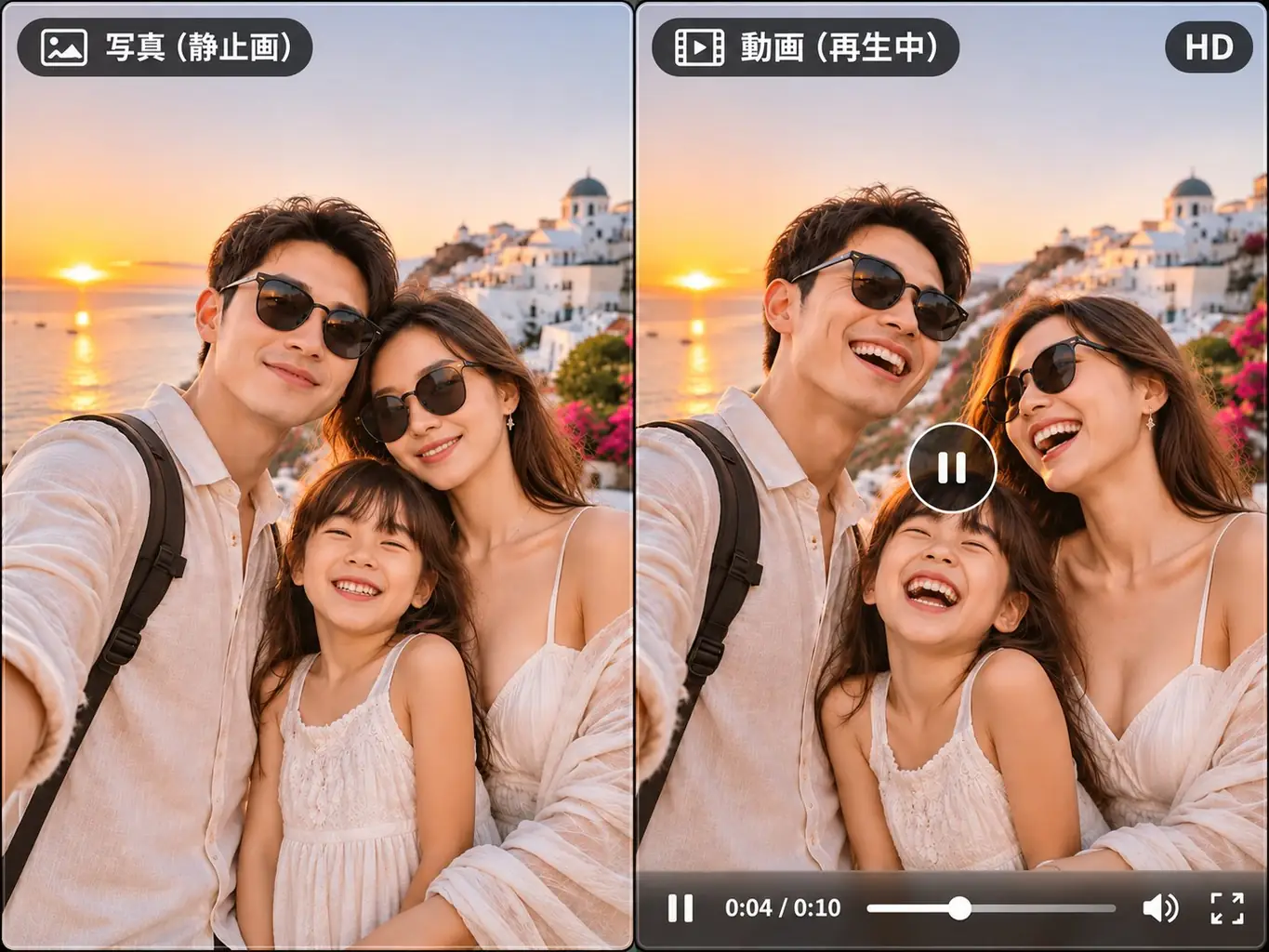
Image to Video AI, Built for the Second Attempt
Daily credits to start with
If you are hunting for image to video AI free options, the daily credits cover a few test clips, enough to judge the output on your own material. Run a couple through and see whether the result suits the use you have in mind. More clips means topping up, so treat these as trial runs.
No setup before the first clip
There is no timeline to assemble, no studio to book, and no app to install. The prompt box and the settings sit on one screen in the browser, and the render starts from there. The difference shows up in how little comes before the first clip.
Plain English motion control
Slowly, gently, softly, glinting. The wording that describes how much movement you want is understood as written. That is what separates a usable clip from one that overshoots the instruction.
One image, every aspect ratio
Vertical, horizontal and square all export from the same source image. No re-shooting, no rebuilding the composition for a second platform.
Several versions from one photo
Change the prompt and the same photo yields clips with different motion, which makes A/B testing an ad concept practical without new assets. When the material has to come from words rather than a photo, AI video generation handles that case too.
What People Do with Image to Video AI
"I make the videos for new product announcements from a single product photo. We used to coordinate a shoot date, so being able to publish on the day the idea arrives is the part I notice most."
"Clients usually want both a vertical and a horizontal cut. Choosing the aspect ratio up front means I am not rebuilding the composition after export, and that alone bought back a day a week."

"I animate my finished illustrations just slightly. Being able to specify a blink or a strand of hair in words means the mood of the drawing survives the movement."
"I export silent and add the music myself. Being able to separate the audio at the asset stage makes everything downstream much lighter."
"For ad comparisons I generate several motion variants from the same photo. Having only one source image and still being able to run the test is the whole point."

"I like that it runs in the phone browser. An idea from a commute is a finished clip by the evening, and there is no app to install before that can happen."
Image to Video AI: Common Questions (FAQ)
Try Image to Video AI on Your First Clip
Pick one photo and describe the motion in a sentence. The image to video AI turns it into a short clip you can preview before downloading.